

 Veselin Stoyanov11 min read
Google Search Console Content Optimization: Fix Pages That Are Almost Ranking
Find high-impression pages and striking-distance queries in Google Search Console, refresh content strategically, and measure the results.

A useful Google Search Console content optimization workflow starts with two opportunities: pages that earn impressions but few clicks, and relevant queries where a page appears around positions 5-20. Review those pages, improve what readers see in search, fill genuine gaps in the article, and track changes over time. The goal is not to edit every page. It is to make focused updates where the data and the content give you a clear reason to act.
Google Search Console shows clicks, impressions, click-through rate (CTR), and average position in its Performance report. Position is an average across impressions, not a promise that a result will appear at the same spot for every search. Use it to find patterns and opportunities, then review the query and page together before changing anything. Google's Performance report guide explains the metrics and report dimensions. (support.google.com)
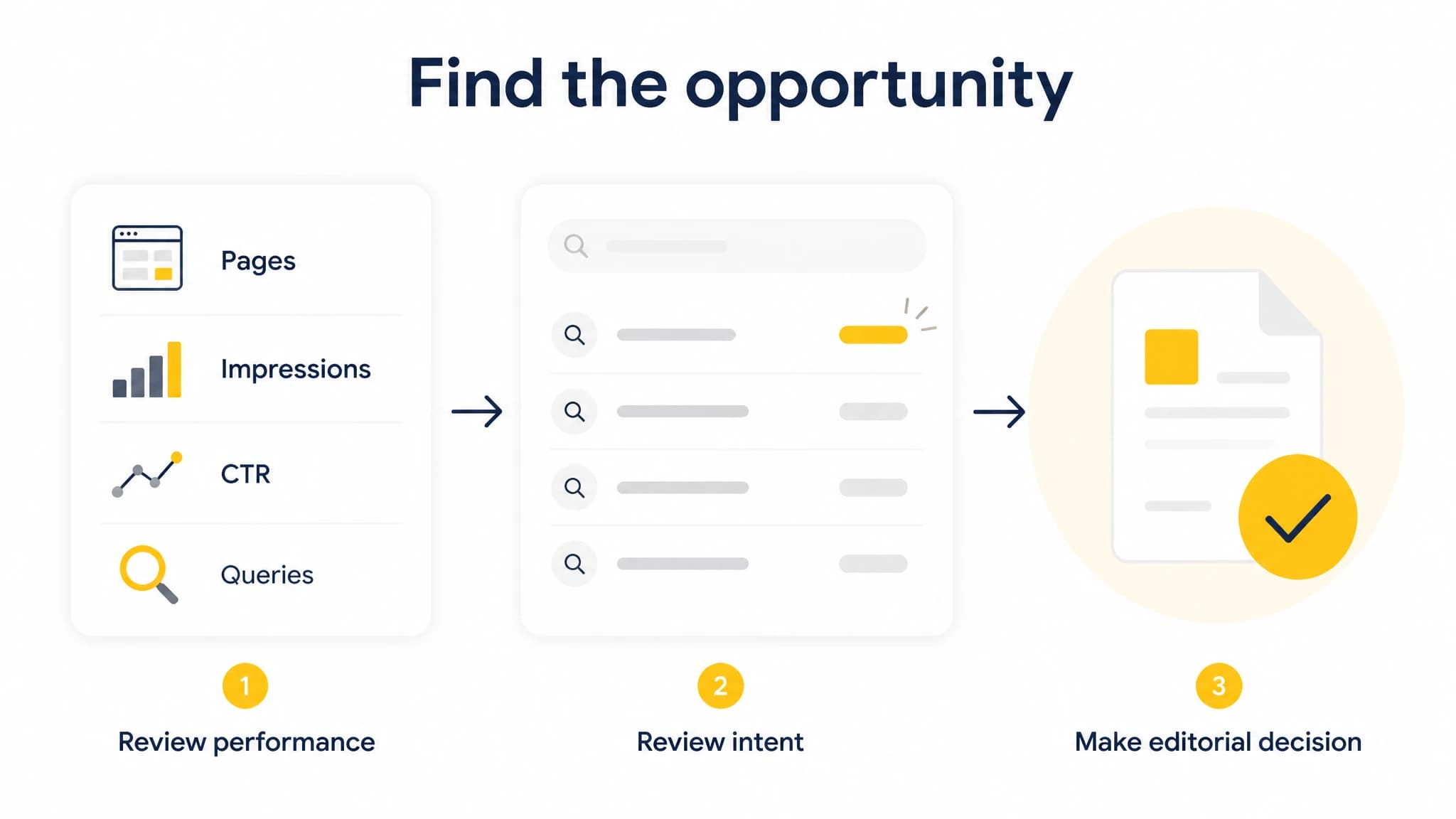
Start with pages that already earn visibility, then review the queries behind it.
1. Find pages with impressions but a low CTR
Start with pages that already appear in search results. They have some visibility, so improving the result or making the page a better match for its searches may help earn more clicks. A low CTR alone does not prove that a title is bad: position, query intent, device, and the other search results can all affect whether someone clicks.
In Search Console:
- Open Performance and select Search results.
- Set Search type to Web.
- Set a date range long enough to provide a useful sample. For an initial review, use the last three months; compare with the preceding period if you want to check whether performance is changing.
- Turn on Total impressions, Average CTR, and Average position in the chart.
- Select the Pages tab and sort by Impressions to find pages that appear often.
- Review each page's CTR alongside its position and clicks. Export the table if you want to sort or filter several pages at once.
Search Console does not give every page a universal “low CTR” label. Make a shortlist using your own context: prioritize pages with enough impressions to make the data worth reviewing, then compare similar pages or time periods. A page near the top of results and a page farther down should not be judged by the same CTR expectation.
Open a shortlisted page's row to filter the report to that URL. Switch to Queries to see which searches contributed impressions. Look for a mismatch between what the query suggests and what the title or description promises. Check the page itself before editing: sometimes the result already describes the page accurately, and the issue is that the page does not answer the query well enough.
2. Find striking-distance queries around positions 5-20
Queries ranking roughly in positions 5-20 are worth investigating because the page is visible, but may not yet be among the results that attract the most attention. Treat this range as a working screen, not a ranking guarantee. Average position can blend different search contexts and may shift over time.
Use this practical workflow:
- In the Performance report, select the Pages tab and choose an article you want to improve.
- Open the page filter for that URL, then select Queries.
- Sort the query table by Impressions to surface searches with meaningful visibility.
- Review Average position and identify relevant queries in the approximate 5-20 range.
- Record the query, impressions, clicks, CTR, and position so you can compare later.
- Exclude queries that do not fit the page's subject or likely search intent, even if their position looks promising.
The report lets you filter and group performance data by dimensions such as page and query. For a long list, export the table and filter the position column in a spreadsheet. Google's report guidance also describes using the Pages tab to inspect URLs shown for a selected query. (support.google.com)
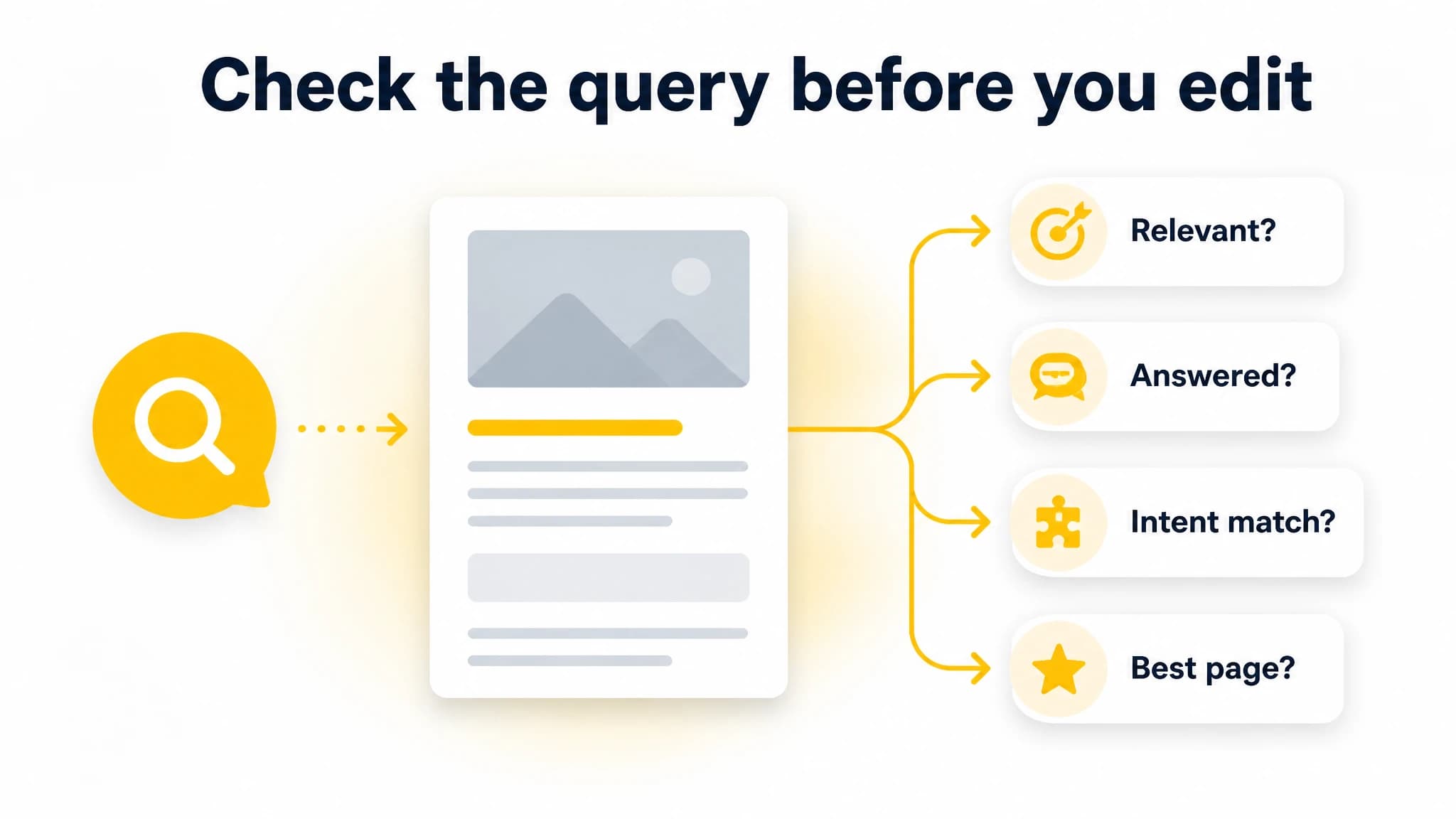
Use relevance and search intent to decide whether a query merits a content change.
3. Decide what to change before editing
A query appearing in Search Console is evidence that Google showed your page for that search. It is not automatically evidence that the article should target it. Before adding a section or changing a title, ask:
- Is the query relevant? Does it fit the article's audience and main topic?
- Does the page answer it? Is the answer already present, hard to find, or missing?
- Does the search intent fit? Would the person searching expect this kind of article?
- Is another page a better match? If two of your pages appear for similar queries, consider which one should be the clearest answer.
- Is the opportunity meaningful? Consider impressions, clicks, position, and how important the topic is to your audience, rather than relying on one metric.
Write down the specific change you plan to make and why. This makes it easier to tell whether a later performance change followed the update, and helps prevent a content refresh from turning into an unfocused rewrite.
4. Improve the title and meta description
Use the query data to understand what searchers may be looking for, then make the search result more specific and accurate. The title should describe the page's actual subject and distinguish it from nearby alternatives. A meta description should summarize what a reader will get from the page, not promise an outcome the article cannot deliver.
For example, suppose an article about choosing a content calendar earns impressions for “SEO content calendar.” If the title only says “Our Content Process,” consider a clearer title that names the subject and the reader's task. If relevant, use the description to explain what the guide helps them plan. Keep the wording natural; inserting a query repeatedly is not a substitute for a useful description.
Before publishing, check that the updated title and description:
- Match the page and its primary intent.
- Set an accurate expectation for the content.
- Use distinctive, readable language rather than a string of keywords.
- Stay consistent with what the page actually delivers.
A lower CTR can have causes beyond metadata. Review the page's position, the queries behind its impressions, and the competing result context before deciding that a title change is the right fix.
5. Add sections for queries the page already earns
A content update should help readers, not just expand a page. If a relevant query appears in the report and the article gives it only a brief or incomplete answer, add a focused section that addresses the need directly. Use a clear heading, answer the question near the start of the section, and include enough explanation to make it useful on its own.
A simple way to draft the update:
- Group related queries by the question or task they express.
- Check the current article to see whether the answer is missing, buried, or outdated.
- Add one section that covers the shared need, instead of creating a separate paragraph for every query variation.
- Link the section to the article's main point so the page remains coherent.
- Re-read the full article for repetition, contradictions, and outdated details.
Do not add a section simply because a query has impressions. If it would take the article off-topic or belong on a different page, leave it out or consider whether another existing page is a better destination. Search Console data is a discovery tool; editorial judgment determines what belongs in the article.
6. Strengthen relevant internal links
Internal links help readers move between related pages and clarify how your content fits together. Look for relevant articles on your site that can add context to the refreshed page, then link with descriptive anchor text that tells readers what they will find. Also check whether other relevant pages already link to the article you updated.
Keep the links useful and selective. Avoid repeating the same anchor unnaturally or adding links that do not help explain the topic. If an article is part of a broader topic cluster, a connected content plan can help you think about how related subjects fit together. Use the linked resource to understand our Google Search Console workflow: we analyze article performance and propose content changes for your review before you apply them.
7. Measure the update over the following weeks
Record a baseline before publishing the revision: the page URL, date range, key queries, impressions, clicks, CTR, and average position. After the change, give the page time to collect new data, then compare a suitable period with the baseline. A few days of movement is not enough to establish that an edit worked.
For a more useful comparison:
- Compare similar date ranges and account for seasonal or weekday differences where relevant.
- Check the page's overall performance and the specific queries you changed it to address.
- Look at clicks and impressions as well as average position; position alone does not tell the whole story.
- Note other changes made to the page or site during the same period.
- Decide whether to keep, refine, or revisit the update based on the trend and the content's usefulness.
Search Console's average position summarizes visibility across impressions, so an individual search may not match the report's average. Google recommends paying attention to trends, not only an absolute position value. (support.google.com)
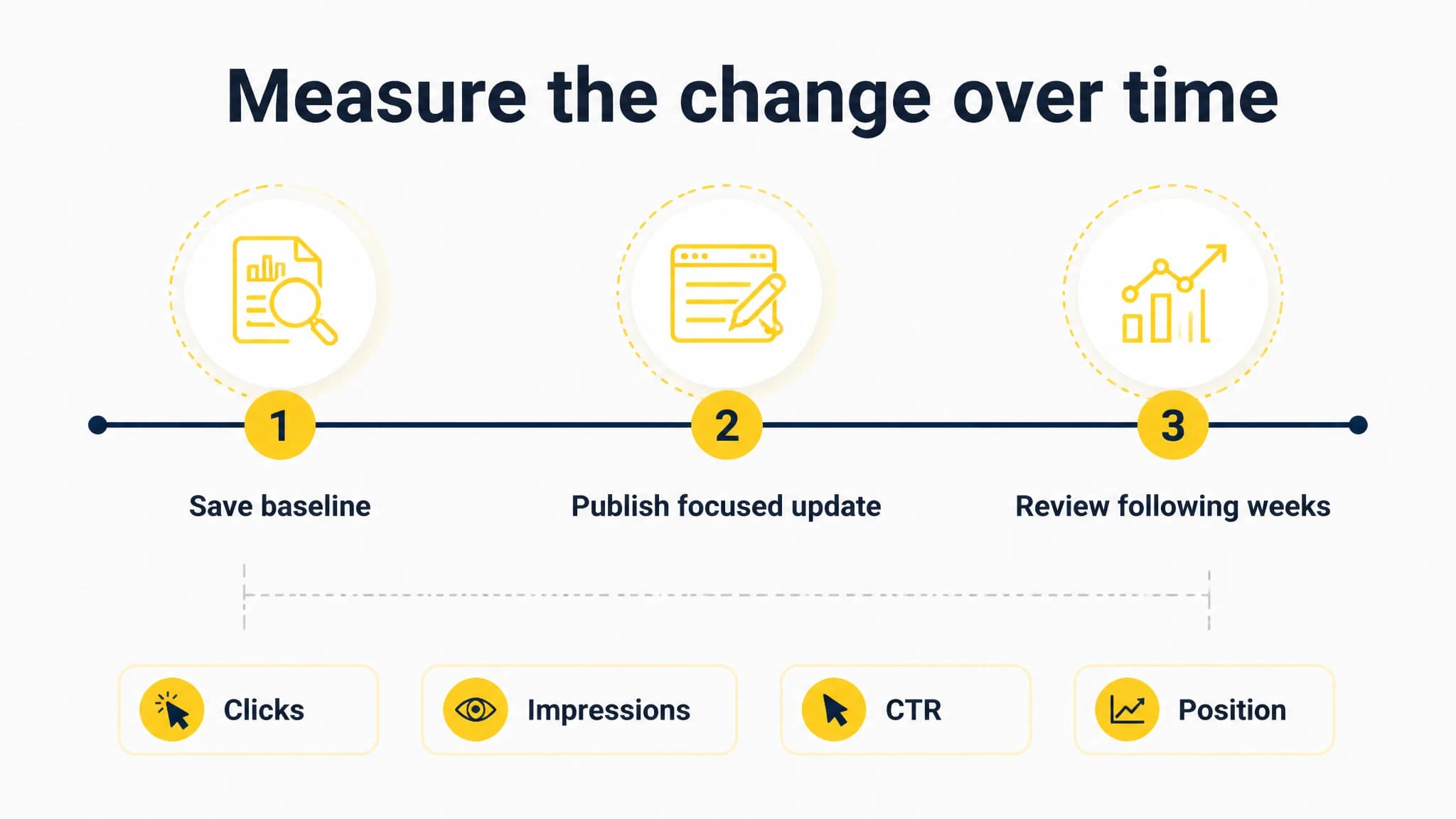
Save a baseline before editing and compare performance over a meaningful period.
A repeatable content refresh routine
You can make this process manageable by reviewing a small batch of articles on a regular schedule:
- Find: shortlist high-impression pages with a possible CTR opportunity and relevant queries around positions 5-20.
- Diagnose: inspect the page and query intent to identify a clear mismatch or content gap.
- Prioritize: choose changes that improve the reader's experience, not changes made just to include more keywords.
- Update: revise the title or description, add a useful section, improve relevant internal links, or make another justified edit.
- Track: save a baseline and review results over the following weeks.
If managing the review manually becomes a bottleneck, our Google Search Console integration analyzes article performance and proposes revisions and content changes that you review before applying. You stay in control of which recommendations become edits. See the Google Search Console integration for details on that workflow.
Conclusion
Google Search Console content optimization is most useful when it guides a specific editorial decision. Start with pages that earn impressions, inspect relevant queries with room to improve, and check that the title, description, article sections, and internal links match what readers need. Record a baseline, make focused changes, and evaluate the trend over the following weeks rather than reacting to a short-term fluctuation.