

 Veselin Stoyanov10 min read
Can Google Crawl Your Next.js Site? A Practical Guide
Check whether Google can crawl and index your Next.js site. Learn how to test rendered HTML, links, robots.txt, sitemaps, metadata, and canonicals.

A Google crawlability check for a Next.js site comes down to a few questions: can Googlebot access the URL, does the rendered page contain the content and links you expect, and are your indexing signals consistent? Next.js can serve prerendered HTML or render a page at request time, while a client-side app may depend more heavily on JavaScript execution. Test the actual URL in Google Search Console instead of assuming the browser view tells the whole story.
This guide focuses on the App Router. The checks also apply to many Pages Router sites, but file conventions and rendering setup may differ.
How Next.js rendering affects what Google sees
Google can render JavaScript, but crawling, rendering, and indexing are separate stages. A URL may be crawled before its JavaScript is rendered, and a page can be crawled without ultimately appearing in Search. Google recommends checking the rendered result when a page depends on JavaScript. (developers.google.com)
Next.js rendering mode affects what is present in the initial HTML response and when that response is generated. It does not guarantee indexing by itself.
| Rendering approach | What happens | Practical SEO consideration |
|---|---|---|
| Server-side rendering (SSR) | The server generates HTML for a request. | Check that the response includes the main content and correct status code. |
| Static site generation (SSG) | HTML is generated ahead of a request, commonly during a build. | Confirm new or updated pages are included in the generated output after deployment. |
| Incremental Static Regeneration (ISR) | A previously generated page can be regenerated according to its revalidation setup. | Check that the latest content is published and the page refreshes on the schedule your setup expects. |
| Client-side rendering (CSR) | The browser JavaScript builds much or all of the page content. | Google may render it, but important content and links can depend on JavaScript loading and execution. |
In the App Router, pages and layouts are Server Components by default, and Next.js can prerender pages or dynamically render them at request time. A page can also combine server-rendered content with client-side interactive components. Google describes its JavaScript processing as a crawl, render, and index pipeline, so the useful question is not simply “Does this use React?” but “What does the rendered page contain?” (nextjs.org)
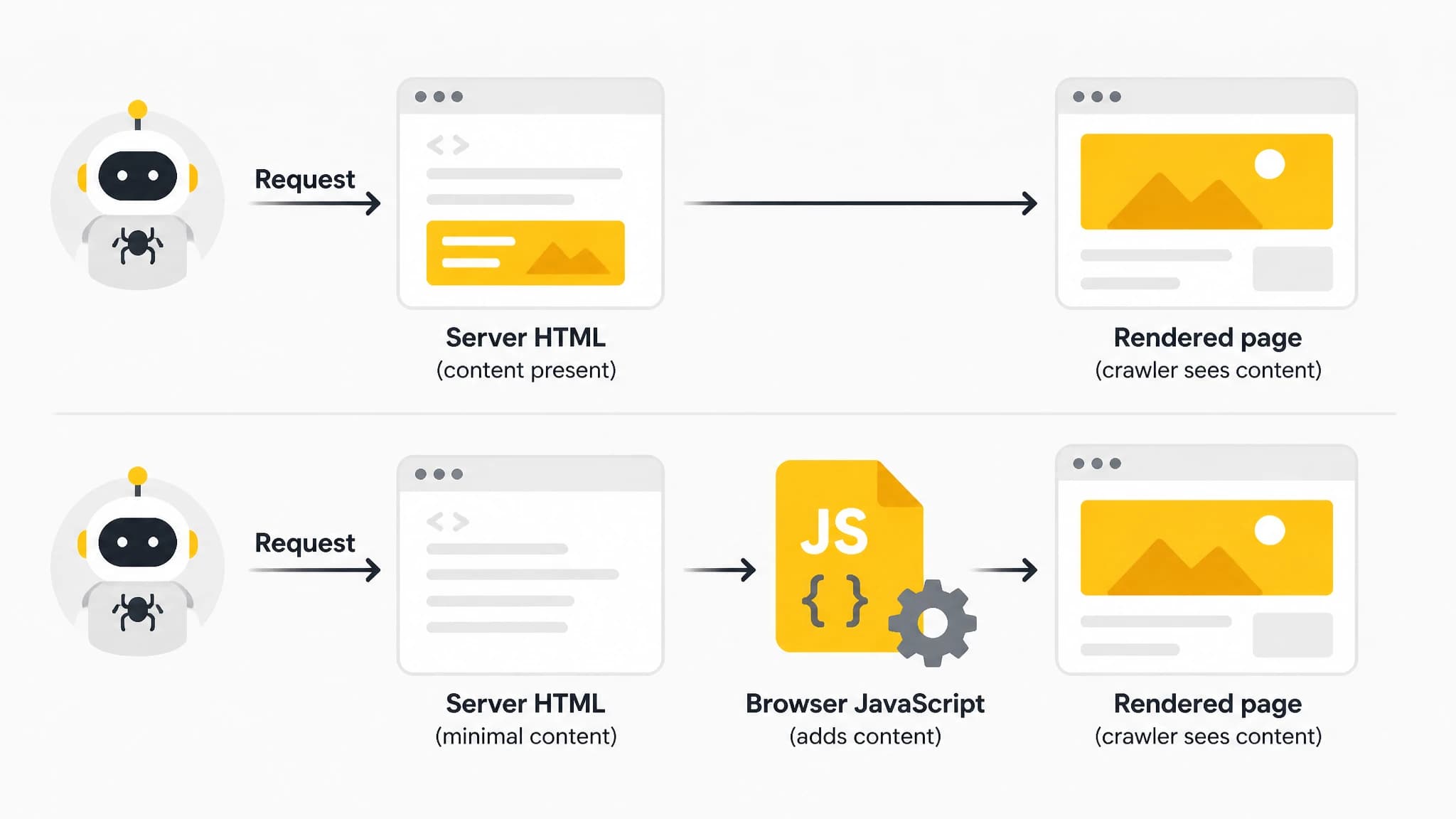
Rendering choices determine when important page content becomes available.
For content pages, prefer a setup that delivers the article text and important navigation as HTML without requiring a user interaction to reveal them. Then use JavaScript for enhancements, rather than making the main content depend on a button click, scroll event, or client-only API response.
Check a URL with Google Search Console
Use URL Inspection to test a published page, not just a local development route:
- Open Google Search Console for the correct site property and enter the full page URL in URL Inspection.
- Review the page's indexed status and any reported crawl or indexing details. If it is not indexed, note the stated reason rather than treating every case as a rendering problem.
- Run a live test to check what Google can access now. A live test is a diagnostic, not a promise that the URL will be indexed.
- Open the rendered page view and inspect the screenshot, HTML, and loaded resources where available. Confirm the main heading, article text, internal links, title, robots directives, and canonical URL are present and correct.
- If resources fail or the page looks incomplete, check the affected JavaScript and CSS URLs, server logs, browser console, and whether robots.txt blocks resources needed to render the page.
Google's JavaScript SEO guidance recommends using URL Inspection or the Rich Results Test to examine rendered HTML when checking whether Google can see content after rendering. For a focused reference, see Google's JavaScript SEO guide. (developers.google.com)
Compare the response HTML with the rendered page
For a fast first check, fetch the page or use the browser's View Page Source and search for a distinctive sentence from the article. If it is absent from the original response but appears in the browser's live DOM, the content is likely added during client-side rendering. That is not proof Google cannot index it, but it is a useful signal to investigate rendering delays, failed requests, and dependence on JavaScript.
Do not confuse View Page Source with the browser's Elements panel. View Page Source shows the response document; Elements shows the current DOM after scripts may have changed it. Use both, then confirm Google's view in Search Console. Also check that a page expected to exist returns a successful HTTP status, not a soft error page served with a misleading 200 response.
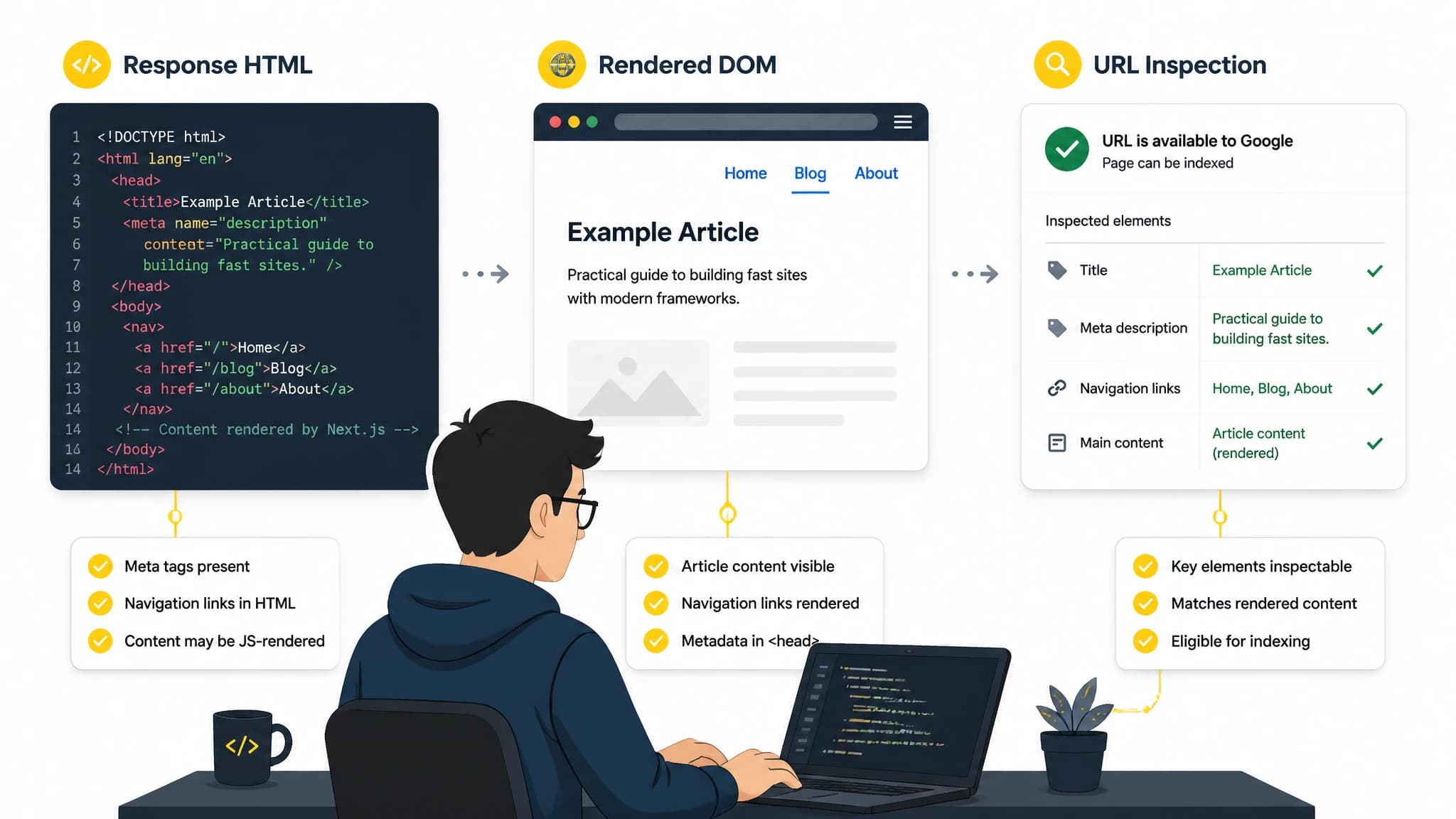
Compare the initial response with the rendered page to spot content or resource gaps.
Make internal links crawlable
Google generally discovers links from HTML anchor elements that have an href. A clickable div, a button that triggers navigation, or an anchor without href is not a reliable replacement. Google can process JavaScript-inserted links, but standard links in the initial HTML can make discovery more straightforward. (developers.google.com)
In the App Router, use Next.js Link for internal navigation:
import Link from 'next/link'

export function RelatedArticle() {
  return <Link href="/blog/technical-seo">Technical SEO guide</Link>
}
Check the resulting page to ensure the link resolves to a real, indexable URL. Build the href from the actual destination, use descriptive anchor text, and avoid links that only work after a special interaction. If you generate a list of article links from data, verify that the final rendered anchors have the correct href values.
Set up robots.txt, sitemap, and indexing signals
Review robots.txt
In the App Router, a robots.ts file in the app directory can generate /robots.txt. Keep the rules intentional: a disallow rule prevents a crawler from requesting matching paths, so do not accidentally block public pages or resources needed for rendering. A robots exclusion is not the same as a noindex directive; use the right control for the outcome you want.
import type { MetadataRoute } from 'next'

export default function robots(): MetadataRoute.Robots {
  return {
    rules: { userAgent: '*', allow: '/' },
    sitemap: 'https://example.com/sitemap.xml',
  }
}
Replace the example hostname with your canonical production domain and add restrictions only when they are needed. Next.js documents robots.ts as a supported metadata file convention. (nextjs.org)
Generate a sitemap that reflects published pages
An App Router app/sitemap.ts file can return URLs for a generated sitemap. Include canonical, public pages that you want search engines to discover, and keep the URL list in sync with content that is actually published. A sitemap helps discovery, but it does not force crawling or indexing. (nextjs.org)
import type { MetadataRoute } from 'next'

export default function sitemap(): MetadataRoute.Sitemap {
  return [
    {
      url: 'https://example.com/blog/technical-seo',
      lastModified: new Date(),
    },
  ]
}
For a blog with changing content, generate entries from the same source of truth used to publish articles. Check for stale URLs, drafts, redirects, and pages that should not be indexed. Our Next.js sitemap automation guide covers keeping a content sitemap current. For the wider set of implementation checks, use our Next.js SEO checklist.
Add page metadata and a consistent canonical
Use the App Router Metadata API for titles, descriptions, and canonical URLs. Static page details can use a metadata export; route-specific details can use generateMetadata in a Server Component. Next.js supports canonical metadata through alternates.canonical. (nextjs.org)
import type { Metadata } from 'next'

export const metadata: Metadata = {
  title: 'Technical SEO guide',
  description: 'A practical guide to technical SEO.',
  alternates: {
    canonical: 'https://example.com/blog/technical-seo',
  },
}
For dynamic article routes, build the title, description, and canonical from the current article record. Confirm the canonical points to the preferred public URL, especially if query parameters, alternate routes, or trailing-slash rules could produce duplicates. Avoid conflicting canonical values between the original HTML and JavaScript-rendered output. Google advises setting the canonical consistently. (developers.google.com)
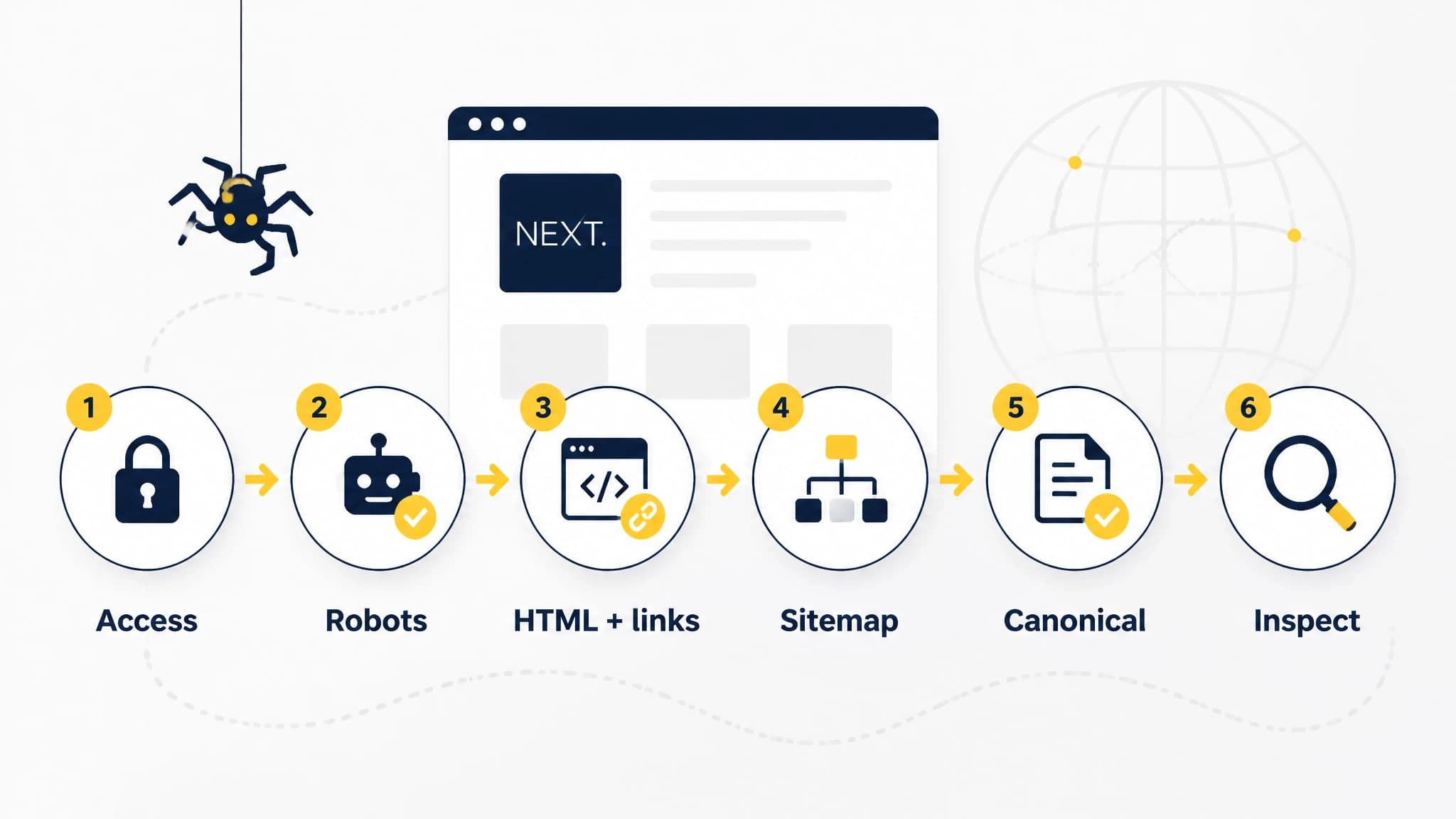
Debug crawlability in order, from URL access through indexing signals.
A practical debugging order for Next.js indexing issues
When one page fails, work from access to content to signals. This helps avoid changing metadata when the real problem is a blocked route or failed render.
- Confirm the URL works: Request the public URL and check for the expected status code, redirects, and final destination.
- Check access rules: Review robots.txt, page-level robots metadata, and response headers for accidental blocking or
noindexdirectives. - Inspect the HTML: Look for the main article text, primary navigation, and useful links in the response and rendered DOM.
- Check rendering failures: Look for failed scripts, API requests, hydration errors, and resources blocked from crawlers.
- Verify metadata: Confirm a unique title and description and one appropriate canonical URL.
- Check discovery: Make sure the page is linked from a crawlable page and included in the current sitemap when appropriate.
- Re-test and monitor: Use URL Inspection again after changes, then monitor the indexed status. Crawling or passing a live test does not guarantee that Google will index the page.
For publishing teams, repeatability matters as much as the initial setup. With our Next.js integration, we publish SEO-ready articles into your site, helping connect content planning and production to a consistent publishing workflow. Keep your deployment and indexing checks in place: a publishing workflow can add pages, but it cannot guarantee that Google will crawl or index them.
Final crawlability checklist
Before you call a Next.js page ready, verify that Google can fetch the URL, the main content appears in rendered HTML, and internal links use real href destinations. Then check robots rules, the sitemap, page metadata, canonical URL, and indexing status in Search Console. If one test fails, fix that specific layer and test the live page again.
Use our Next.js SEO best practices guide for related implementation guidance. With RankWorker, we can help you plan and publish SEO content for a Next.js site, while you keep control of the technical checks that make the pages accessible to search engines.